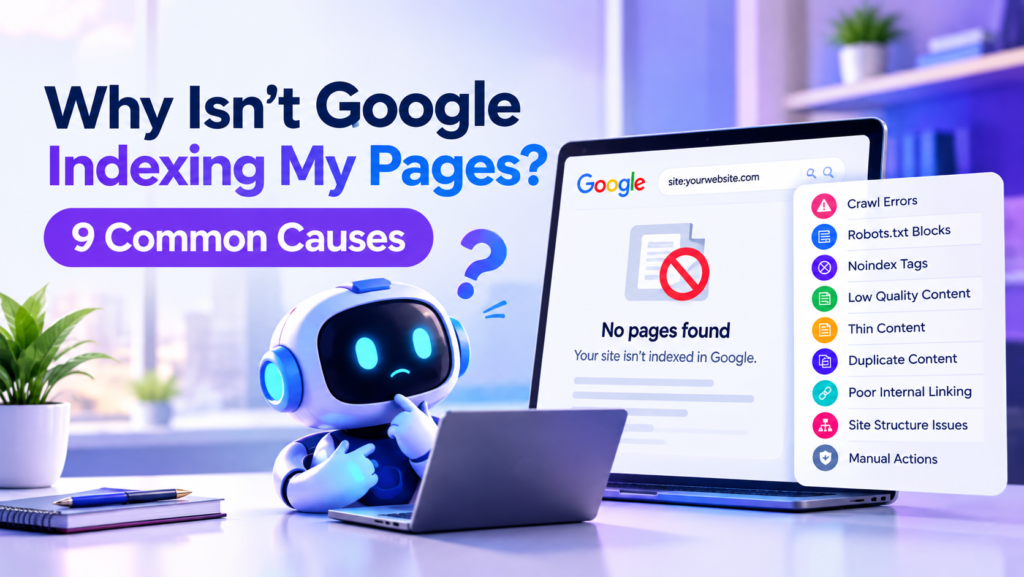
If you’ve published content and it’s nowhere to be found on Google, you’re dealing with one of the most frustrating SEO problems out there. Google not indexing my site is a search thousands of site owners run every month, and usually the fix is simpler than it seems.
Indexing is the process where Google crawls your page, evaluates it, and adds it to its database so it can show up in search results. If a page isn’t indexed, it’s invisible; no amount of keyword optimization matters until this is fixed. If you want a fuller picture of how this process works end to end, see our guide on how Google and AI search work in 2026. Below are the 9 most common reasons Google won’t index your pages, how to confirm what’s happening in Search Console, and exactly how to fix each issue.
Quick Answer: Why Is Google Not Indexing My Site?
The most common causes are a noindex tag left on the page, a robots.txt file blocking crawlers, no internal links pointing to the page, thin or duplicate content, slow crawl budget, unsubmitted sitemaps, canonical tag conflicts, server errors during crawl attempts, or the site simply being too new. We’ll cover each below with exact fixes.
1. You Have a “Noindex” Tag on the Page
This is the #1 cause when Google is not indexing my site despite everything else looking fine. A noindex meta tag or HTTP header tells Google directly not to index the page, and Google obeys it almost every time, even if the page is high quality.
This often happens accidentally: staging sites pushed live without removing noindex tags, SEO plugins with a default “no” setting on new posts, or a developer forgetting to flip a setting before launch.
How to check: View page source and search for <meta name=”robots” content=”noindex”>, or run the page through a noindex tag checker tool. You can also check the URL Inspection tool in Search Console; it will explicitly say “Excluded by ‘noindex’ tag.”
Fix: Remove the tag if indexing was never intended, then request re-indexing via Search Console.
2. Robots.txt Is Blocking Search Engine Bots
Getting your robots.txt configured correctly for search engine access is critical since one wrong Disallow rule can block your entire site, or specific folders like /blog/ or /products/, from ever being crawled.
How to check: Go to Search Console → Settings → robots.txt tester, or visit yoursite.com/robots.txt directly and look for broad disallow rules.
Fix: Remove any disallow rules blocking pages you want indexed. Be especially careful with WordPress sites; the “Discourage search engines” setting under Settings → Reading writes a blanket disallow into robots.txt. If crawling problems go beyond robots.txt, our technical SEO services page covers the full range of crawl and speed issues that block indexing.
3. “Discovered, Currently Not Indexed” Status
This exact Search Console label is one of the most searched error states, and for good reason: it’s vague. It means Google found your URL (usually via your sitemap or a link) but hasn’t gotten around to crawling it, often due to crawl budget constraints or perceived low priority.
Fix: Improve internal linking to the page, submit the URL manually via URL Inspection, and make sure the page loads fast. Sites with hundreds of thin or low value pages often see this status pile up; trimming bloat can help remaining pages get crawled faster.
4. “Crawled, Currently Not Indexed” Status
Different from above: Google did crawl the page but chose not to index it. This is a stronger, more concerning signal that Google evaluated the content and decided it wasn’t worth adding to the index, usually due to thin, duplicate, or low value content.
Fix: Expand the content meaningfully, add original insight or data, and avoid boilerplate templates repeated across many pages (a common issue with programmatic or auto generated pages).
5. Canonical Tag Conflicts
Canonical tag issues are a sneaky, easy to miss cause: if your canonical tag points to a different URL, Google indexes that one instead of the page you’re trying to rank.
Fix: Make sure self referencing canonicals are set correctly on pages that should stand alone. Only point canonicals elsewhere when you intentionally want to consolidate duplicate or near duplicate content.
6. Duplicate Content Problems
Resolving duplicate content problems that hinder indexing is essential since Google won’t index near identical pages competing against each other, and will often pick one (or none) to show.
Fix: Consolidate similar pages into one comprehensive page, use canonical tags properly, or rewrite each page to serve a genuinely different search intent.
7. Poor Site Structure or No Internal Links
If a page has zero internal links pointing to it (an “orphan page”), Google may never prioritize crawling it, no matter how good the content is.
Fix: Link to the page from your homepage, main navigation, or related blog posts. A simple “related articles” section can fix this sitewide. Solid internal linking is also a key part of the local SEO, AEO, and GEO framework we recommend for overall visibility.
8. Slow Page Speed Hurting Crawl Efficiency
Page loading speed plays a bigger role in crawling and indexing than most people think: slow sites get crawled less frequently and less thoroughly, which delays or prevents indexing of new pages.
Fix: Run a PageSpeed Insights audit and fix Core Web Vitals issues like large images, render blocking scripts, and slow server response times. If you’re on WordPress and Elementor, our guide on fixing Core Web Vitals to improve INP walks through this in detail.
9. Sitemap Not Submitted or Broken
If Google doesn’t know your URLs exist, it can’t index them. A missing, outdated, malformed, or broken XML sitemap is one of the most overlooked causes, especially after a site migration or redesign.
Fix: Submit your sitemap in Search Console under the Sitemaps report, and check it doesn’t return a 404 or contain URLs that redirect or 404 themselves.
How Long Does It Take Google to Index a New Site?
Typically anywhere from a few days to a few weeks for a brand new site with no existing authority. Submitting your sitemap and requesting indexing manually through URL Inspection speeds this up significantly, though Google still crawls based on its own priority signals.
Google Indexed But Not Ranking? Here’s Why
Indexing and ranking are different problems. A page can be fully indexed but buried on page 5 due to weak content depth, low domain authority, poor keyword targeting, or strong competition. That’s a ranking issue, not an indexing one, and needs a different fix such as better content and backlinks. You can also mine your GSC queries with impressions but no clicks to find quick ranking wins on pages that are already indexed.
How to Request Re-Indexing After Updating Content
- Open Google Search Console
- Paste the URL into the top search bar (URL Inspection tool)
- Click “Request Indexing”
- Wait 24 to 48 hours for Google to recrawl and process the page
FAQs
1. How can I check if my site is blocked from being indexed by major search platforms?
Use Search Console’s URL Inspection tool. It tells you exactly whether a page is indexed, blocked, noindexed, or has crawl errors.
2. What tools can I use to diagnose indexing issues with my website?
Google Search Console, Bing Webmaster Tools, Screaming Frog, and Ahrefs Site Audit are the most reliable for spotting noindex tags, robots.txt blocks, and crawl errors.
3. What are the differences between indexed and non indexed pages on a site?
Indexed pages appear in Google’s database and can rank in search results; non indexed pages are excluded entirely from search, regardless of content quality.
4. How do I use webmaster tools to monitor my site’s indexing health?
Check the Coverage/Indexing report in Search Console weekly to catch new “not indexed” errors before they affect meaningful traffic.
5. What are the steps to submit my site for indexing on popular search engines?
Submit an XML sitemap via Search Console and Bing Webmaster Tools, then use the URL Inspection “Request Indexing” feature for priority pages you want crawled sooner.
6. What are the primary reasons a new site might not appear in search results?
New sites often lack authority and internal links, may not have a submitted sitemap yet, or simply haven’t been crawled due to Google’s discovery timeline.
7. How do I fix crawl errors that prevent my site from being indexed?
Check the Page Indexing report in Search Console for specific error types (server errors, redirect errors, 404s), then fix each at the source such as server config, redirect chains, or broken links.
8. What should I know about the impact of noindex directives on search engine discovery?
A noindex directive fully removes a page from consideration for indexing even if it’s crawled, linked to, and otherwise high quality. It’s the most absolute exclusion signal you can give Google.
9. How does duplicate content affect which page Google chooses to index?
When Google finds near identical pages, it typically indexes only one version (often based on canonical signals or authority) and treats the others as duplicates, excluding them from the index.
10. Can a site be partially indexed, with some pages showing and others not?
Yes, indexing happens per URL, not sitewide. It’s common for a homepage and top pages to be indexed while newer or deeper pages sit in “Discovered” or “Crawled, not indexed” status until Google prioritizes them.