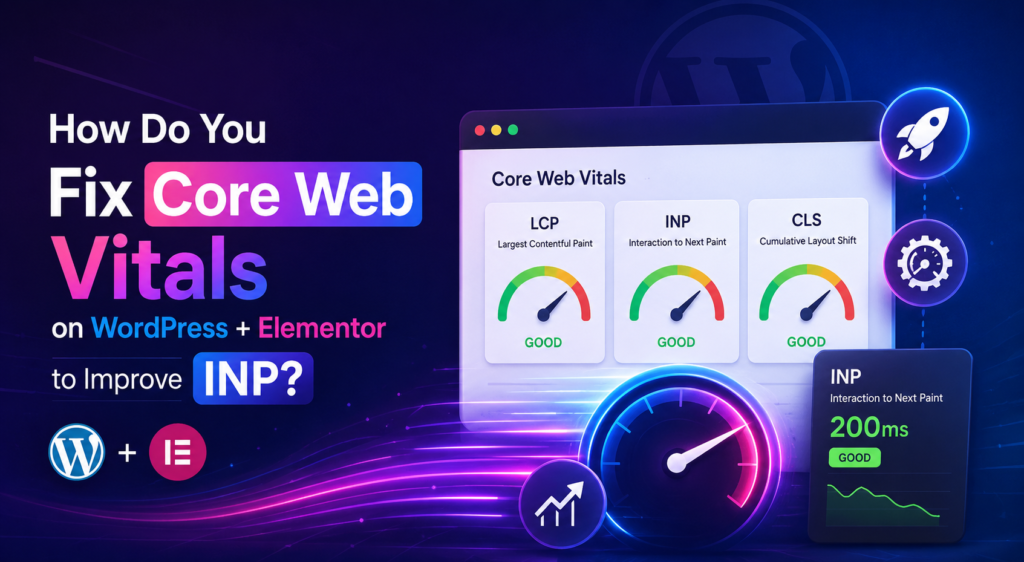
If your WordPress site built on Elementor is failing Core Web Vitals in Google Search Console, there is a good chance INP (Interaction to Next Paint) is the culprit. INP replaced FID (First Input Delay) as an official Core Web Vitals metric in 2024, and it is far stricter. It does not just measure how fast your page reacts to the first click – it measures every single interaction across the entire page visit and reports the worst one.
For WordPress sites running Elementor, this is a real problem. Elementor is powerful, but it is also JavaScript-heavy, widget-heavy, and plugin-dependent – all things that directly hurt INP. The good news is that INP issues are fixable, and you do not need to abandon Elementor to do it.
In this guide, we will break down exactly how to diagnose and fix poor INP on WordPress + Elementor sites, step-by-step, with no fluff.
What Is INP and Why Does It Matter for Core Web Vitals?
INP measures the time between a user interaction – a click, tap, or key press – and the moment the browser visually responds. Google made INP an official Core Web Vitals ranking signal in March 2024, replacing FID entirely.
A “good” INP score is under 200 milliseconds. Anything between 200ms and 500ms is “needs improvement,” and anything above 500ms is flagged as “poor” – directly in Search Console and directly visible to Google’s ranking systems.
Unlike FID, which only tracked the first interaction, INP tracks every interaction throughout the session. That means one slow dropdown menu, one laggy Elementor popup, or one delayed add-to-cart button can tank your entire score – even if the rest of your site loads fast.
Why Does WordPress + Elementor Struggle with INP Specifically?
Elementor is a page builder that generates a lot of front-end JavaScript and CSS to power its widgets, animations, and responsive controls. Combine that with typical WordPress bloat – multiple plugins, unoptimized themes, third-party trackers – and you get a recipe for poor INP.
The most common causes on WordPress + Elementor sites are:
- Elementor’s own JS files loading on every page, even pages that do not use certain widgets
- Third-party plugins injecting additional scripts (sliders, popups, chat widgets, form builders)
- Long JavaScript tasks blocking the main thread during user interaction
- Excessive DOM size from nested Elementor sections, columns, and widgets
- Render-blocking CSS from Elementor’s global stylesheet and third-party addons
- Poor hosting or missing server-side caching, which delays script execution
Now let’s fix each one of these properly.
How Do You Diagnose INP Issues Before Fixing Them?
Before touching any code, you need real data. Do not guess – measure.
- Open Google Search Console and go to the Core Web Vitals report. Check which URLs are flagged as “poor” or “needs improvement” for INP.
- Run PageSpeed Insights (pagespeed.web.dev) on your flagged URLs. Look at the “Interaction to Next Paint” score and the “Avoid long main-thread tasks” diagnostic.
- Check the Chrome User Experience Report (CrUX) data inside PageSpeed Insights – this reflects real user data, not lab simulation.
- Use Chrome DevTools Performance panel – record an interaction on your live site and look for long tasks (anything over 50ms) in the main thread.
Once you know which pages and which interactions are slow, you can target the fix precisely instead of optimizing blindly.
How Do You Fix Core Web Vitals on WordPress + Elementor to Improve INP? (Step-by-Step Solutions)
How Do You Reduce JavaScript Execution Time in Elementor?
JavaScript execution is the number one cause of poor INP. Here is how to cut it down:
- Switch on Elementor’s “Improved Asset Loading” setting under Elementor > Settings > Advanced. This loads CSS and JS only for the widgets actually used on a page instead of loading everything globally.
- Remove unused Elementor addons and widget plugins (like Essential Addons or Premium Addons) if you are only using 10-15% of their widgets.
- Defer non-critical JavaScript using a performance plugin like WP Rocket, FlyingPress, or Perfmatters.
- Delay third-party scripts (chat widgets, analytics, ad pixels) until user interaction using script delay/defer settings in your caching plugin.
How Do You Optimize Third-Party Scripts and Plugins?
Every extra plugin is a potential INP killer. Audit your plugin list and ask: does this need to load on every page?
- Disable heavy plugins (page builders addons, SEO plugins with front-end scripts, popup builders) on pages where they are not used.
- Replace bloated form plugins with lightweight alternatives if you are only collecting basic form data.
- Move chat widgets, live chat tools, and tracking pixels to load after user interaction, not on page load.
- Audit Google Tag Manager containers – too many tags firing on load is a common hidden INP problem.
How Do You Fix Render-Blocking Resources in Elementor?
Render-blocking CSS and JS delay the browser’s ability to respond to interactions.
- Enable CSS minification and combination carefully – test after enabling, as combining files can sometimes create larger blocking bundles.
- Use critical CSS generation through your caching plugin so above-the-fold content renders without waiting on the full stylesheet.
- Host Google Fonts locally instead of loading them from Google’s servers, which removes an external render-blocking request.
- Remove unused CSS with a tool like Perfmatters’ unused CSS remover or WP Rocket’s Remove Unused CSS feature.
How Do You Optimize Images to Support Better INP?
While images mainly affect LCP, heavy image-related scripts (lazy-load libraries, lightbox popups, gallery sliders) can also block interaction response.
- Use native lazy-loading (loading=”lazy”) instead of JavaScript-based lazy-load libraries where possible.
- Compress images with ShortPixel or Imagify and serve WebP or AVIF formats.
- Avoid Elementor’s built-in lightbox for large galleries – it adds JS overhead. Use a lightweight lightbox alternative instead.
How Do You Reduce DOM Size in Elementor Pages?
A bloated DOM (Document Object Model) makes every interaction slower because the browser has more nodes to process.
- Avoid deeply nested Elementor sections, inner sections, and columns. Flatten your layout structure where possible.
- Replace multiple stacked widgets with a single custom HTML widget for simple content blocks.
- Keep DOM element count under 1,500 nodes per page as a general benchmark – check this in Chrome DevTools under the Elements panel.
How Do You Choose the Right Hosting and Caching Setup?
No amount of front-end optimization fully compensates for slow server response.
- Move to a managed WordPress host with server-level caching (Kinsta, WP Engine, Cloudways) instead of shared hosting.
- Enable object caching (Redis or Memcached) if your host supports it – this dramatically speeds up dynamic Elementor pages.
- Use a CDN like Cloudflare to reduce server response time (TTFB), which indirectly supports better interaction responsiveness.
How Long Does It Take to See INP Improvements After These Fixes?
Search Console’s Core Web Vitals report uses a rolling 28-day data window, so you will not see confirmation in the report immediately. However, PageSpeed Insights and DevTools testing should show measurable INP improvement within minutes of implementing script and DOM fixes. Full confirmation in Search Console typically takes 3 to 4 weeks as Google collects fresh real-user data.
Need Help Fixing Core Web Vitals the Right Way?
Fixing INP on a WordPress + Elementor site is technical, and one wrong plugin setting can break your layout instead of fixing your speed. If you want it done right – without the trial and error – Pizles offers dedicated Technical SEO services built specifically to fix crawl, speed, and Core Web Vitals issues, plus specialized WordPress SEO services tailored for Elementor and WooCommerce sites.
We also help brands stay visible as search shifts toward AI answers through our AI SEO / Generative Engine Optimization (GEO) services – because speed and technical health directly influence whether AI engines cite your content at all.
Get in touch with Pizles today and let our team run a full Core Web Vitals audit on your WordPress site – no guesswork, just measurable results.
FAQs
1. What is a good INP score for WordPress websites?
A good INP score is under 200 milliseconds. Between 200ms and 500ms needs improvement, and above 500ms is considered poor by Google.
2. Does Elementor slow down Core Web Vitals?
Elementor can slow down Core Web Vitals if too many widgets, addons, and unused scripts load on every page. With proper optimization settings, Elementor can still perform well.
3. Is INP more important than LCP or CLS?
All three Core Web Vitals matter for ranking, but INP is often the hardest to fix because it depends on JavaScript execution across the entire user session, not just page load.
4. Can I fix INP without a developer?
Basic fixes like enabling Elementor’s improved asset loading, using a caching plugin, and removing unused plugins can be done without coding. Deeper fixes like DOM restructuring may need developer help.
5. Which caching plugin is best for Elementor INP issues?
WP Rocket, FlyingPress, and Perfmatters are commonly used with Elementor because they offer script delay, unused CSS removal, and critical CSS generation.
6. Does WooCommerce make INP worse on WordPress?
Yes, WooCommerce adds extra scripts for cart, checkout, and product interactions, which can increase INP if not optimized properly alongside Elementor.
7. How often should I check Core Web Vitals?
Check Search Console’s Core Web Vitals report monthly, and run PageSpeed Insights after any major plugin, theme, or content update.
8. Can too many plugins hurt INP even if they load fast?
Yes. Even lightweight plugins add up when running together, each contributing small JavaScript execution delays that combine into a poor INP score.
9. Does mobile INP differ from desktop INP?
Yes, mobile devices generally have less processing power, so mobile INP scores are often worse than desktop scores on the same page.
10. How does Pizles help fix Core Web Vitals issues?
Pizles runs a full technical audit covering JavaScript execution, DOM size, render-blocking resources, hosting, and caching, then implements fixes specifically tailored to WordPress and Elementor sites through our Technical SEO services.