You wrote a meta description. You published it. And Google is either ignoring it completely, showing random text from your page instead, or worse displaying broken code where your description should be.
If that sounds familiar, you’re not alone. This is one of the most common technical SEO issues on small business and agency websites, especially on sites built quickly with static HTML, page builders, or AI-assisted code generation. The good news: it’s almost always fixable in a few minutes once you know where to look.
Why Google Isn’t Showing Your Meta Description
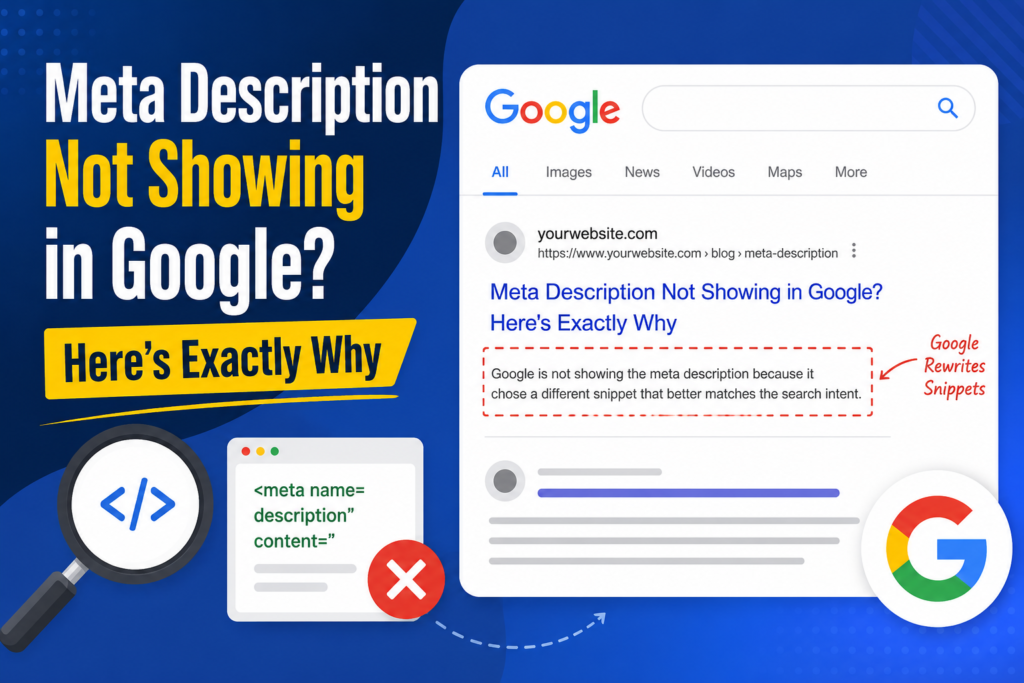
Google doesn’t always use the meta description you write. It uses it as a suggestion, not a guarantee. According to Google’s own documentation, its systems generate the snippet that best matches what the searcher typed, which sometimes means pulling text from elsewhere on the page instead of your tag.
But there’s a difference between “Google chose not to use it” and “Google can’t read it at all.” If your snippet in search results shows raw code, a repeated business name, or unrelated text, that’s not Google being selective that’s a technical error on your page. Here are the real causes, in order of how often we see them.
1. Duplicate Meta Description Tags
The most common cause. If your page has more than one <meta name="description"> tag in the <head> often because a template tag and a manually added tag both exist — browsers and crawlers will read whichever one comes first in the code, which may not be the one you intended.
How to check: View your page source (right-click → “View Page Source” in Chrome) and search (Ctrl+F) for description. If you see more than one result for <meta name="description", that’s your problem.
2. Broken or Unclosed Quotation Marks
This is a sneaky one. If the content="..." attribute isn’t closed properly — a missing closing quote or an extra stray character — everything that follows in the code can leak into what the browser interprets as the description. This is exactly how you can end up with raw CSS or JavaScript showing up in a Google snippet instead of your actual description text.
How to check: In your page source, find your meta description tag and make sure it follows this exact structure, with no line breaks inside it:
<meta name="description" content="Your description text here.">
If anything after the closing > looks like it’s part of the same line, or if there’s no closing "> at all, that’s the bug.
3. The Tag Is Placed Outside the <head> Section
Meta tags only work inside <head>...</head>. If code was copied or reassembled incorrectly (common when combining multiple AI-generated code snippets into one file), the meta description can accidentally end up in the <body>, where search engines largely ignore it.
How to check: In your source code, confirm the meta description tag appears between the opening <head> and closing </head> tags, not after.
4. The Description Doesn’t Match Search Intent
If your tags are technically correct but Google still rewrites your snippet, it may simply be choosing text it thinks better answers the searcher’s query. This happens more on pages with thin or generic content. The fix here isn’t code — it’s making sure your page content and your meta description are both specific and clearly aligned with what people are actually searching for.
5. Caching and Indexing Lag
If you’ve already fixed the issue but Google is still showing the old, broken snippet, this is often just a delay. Google doesn’t re-crawl and re-index pages instantly.
Step-by-Step Fix
- View your page source and locate every instance of
<meta name="description". - Delete duplicates, keeping only one clean tag.
- Rewrite it correctly, on a single line, with matching opening and closing quotes:
<meta name="description" content="A clear, specific 150–160 character summary of this page."> - Confirm placement — it must sit inside
<head>...</head>. - Repeat this for every page on your site individually. Meta descriptions are page-specific; fixing your homepage doesn’t fix your other pages.
- Validate the fix using Google’s Rich Results Test or by viewing page source again after uploading.
- Request re-indexing in Google Search Console: use the URL Inspection tool, enter the page URL, and click “Request Indexing” for each fixed page.
- Check back in 3–14 days. Re-indexing timelines vary, but most sites see updated snippets within two weeks.
Writing Meta Descriptions That Actually Work
Once the technical issue is fixed, it’s worth getting the content right too:
- Keep it between 150–160 characters so it doesn’t get cut off.
- Include your primary keyword naturally, but write for humans, not just crawlers.
- Make every page’s description unique — never copy the same one across multiple pages.
- Include a light call to action where relevant (“Get a free audit,” “See pricing,” “Book a call”).
- Avoid keyword stuffing — Google increasingly ignores or rewrites descriptions that read as unnatural.
When to Get Help
If you’ve checked all of the above and your snippet is still broken, the issue may be deeper — a plugin conflict, a server-side rendering problem, or a templating bug affecting every page at once. At that point, it’s worth having someone run a full technical SEO audit rather than fixing pages one by one, since the same root cause is often duplicated across your entire site.
If you want a second set of eyes on your site’s technical SEO — meta tags, indexing, Core Web Vitals, and structured data Pizles offers a free audit that flags exactly what’s holding your pages back in search results.